Input
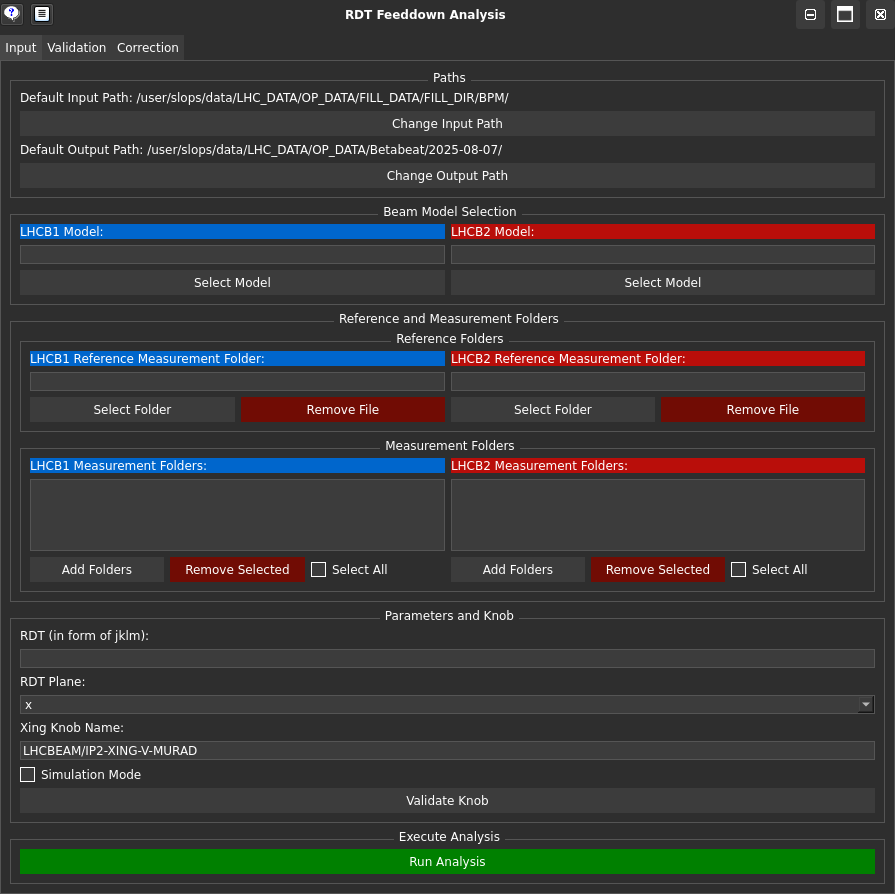
The Input tab of the GUI provides an interface to input data for the RDTfeeddown analysis.
You can load measurement folders, reference data, and crossing angle knob data directly through the GUI.
When the analysis is run, a file is outputted, containing the RDT values and the corresponding knob values in a format suitable for further analysis or validation.
Default Input/Output Directories
To set up default input and output directories, create a configuration file named rdtfeeddown_default.json (in the current working directory where you will launch the GUI from) with the following structure:
{
  "default_input_path": "[insert input path here]",
  "default_output_path": "[insert output path here]"
}
Otherwise, these can be set in this tab of the GUI.
Providing Input to the RDTfeeddown GUI
You can provide input to the RDTfeeddown GUI using the following methods:
File Input: Load input files by clicking the relevant button in the GUI and selecting the appropriate file.
Manual Input: Manually enter file paths in the provided fields within the GUI (except for measurement folders).
Warning
All folder inputs should be in the form used for the results of measurements in the OMC analysis tools.
Input Fields Explained
Model: Requires any model folder generated by the OMC tools. Its only purpose is to provide the list of BPMs to look at.
Reference Measurement Folder: The measurement folder that contains the reference data.
Measurement Folders: Folders containing the data you want to compare with the reference measurement.
Simulation Mode
Simulation Mode: Allows you to use simulation data when no crossing angle knob data is available from Timber. In this case, the GUI will not attempt to load any crossing angle knob data from Timber and will only use the provided properties file.
Properties File
The Properties File is a CSV file that contains the crossing angles used in the model. It should have the following structure:
Running the Analysis
Run Analysis: Runs the analysis on the provided data (i.e. collating crossing angle knob values and the RDT values), and displays the output files in the GUI on the Validation tab.
Other Features
Validate Knob: Not required unless you want to check that the crossing angle knob name exists in the
Timberdatabase for the measurement.